Volt Help
How to Use
Everything you need to get started with Volt and troubleshoot common issues.
The terminal inside Volt usually tells you exactly what went wrong and how to fix it. Always check the terminal output before opening a support ticket.
Getting Started
For beginners — learn how to set up and use Volt.
Setup
This explains how to buy, download and set up Volt.
Warning: Volt does not support "Fishstrap", "Bloxstrap", or any other custom bootstrappers. Use an official, unmodified game client installation from the platform vendor and set the path inside Volt if prompted.
Volt is a paid program that requires a key to use, you cannot use it without a key. Additionally, Volt is an independent product and is not affiliated with or endorsed by any game platform publisher.
- Click here and download the installer for Volt. After downloading, run the installer.
- Sign up on the app with your details and the key you bought, to buy a key go to the main website, or use the /buy command in the official discord server, or use the dashboard for bulk purchases if you already have an account.
- On the welcome page of the UI after installing, click "Open" and do the steps shown in the video below.
- Now you are done setting up Volt. Launch your game through the "Launch" button (or your normal game launcher) and Volt will attach automatically.
Need a walkthrough? Search YouTube for recent Volt setup tutorials from the community.
Executing Scripts
This explains how to execute scripts inside Volt.
- Press on either of the highlighted buttons, to open a new tab.
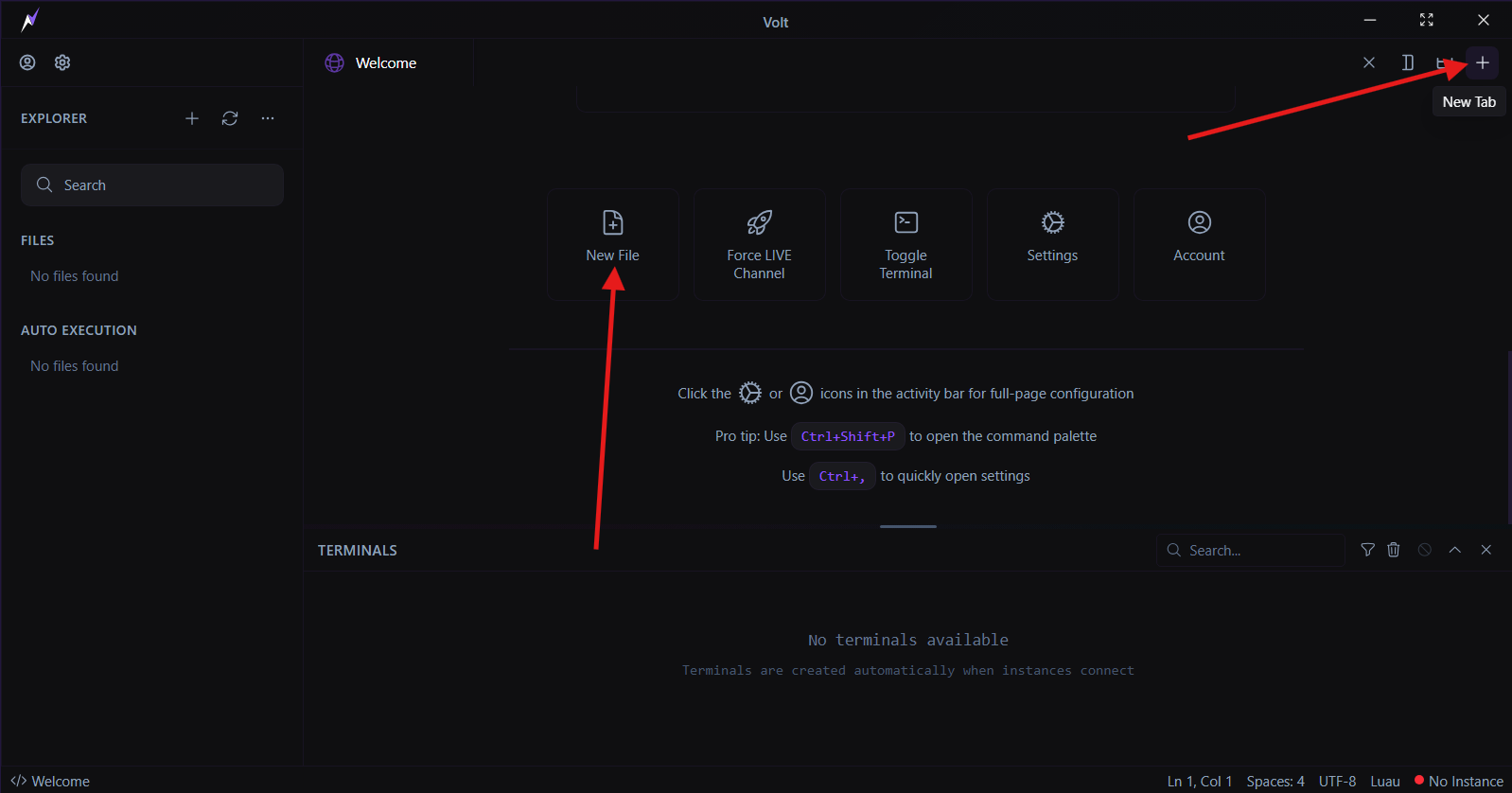
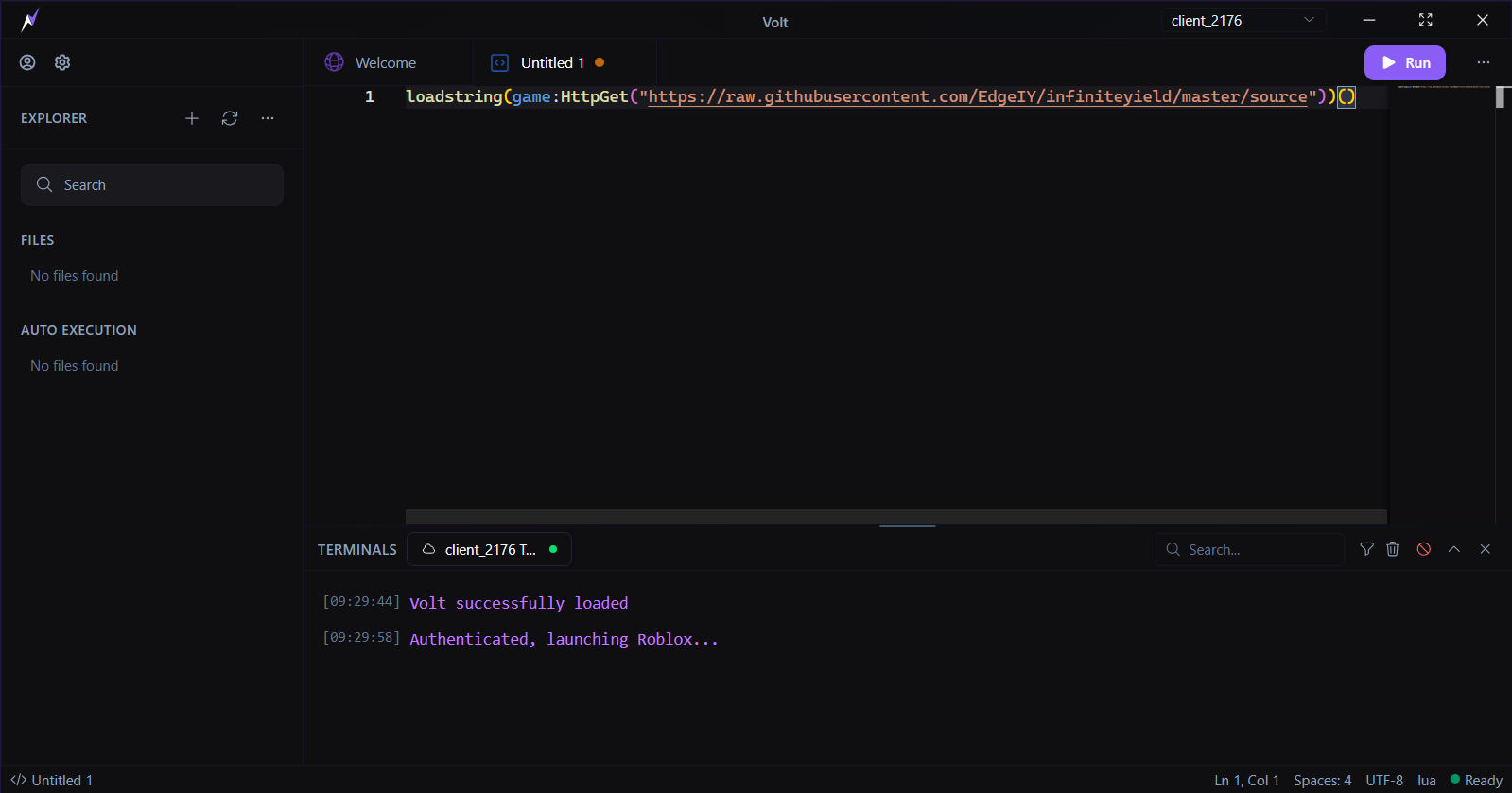
- Then paste the script you wish to execute in the new tab.
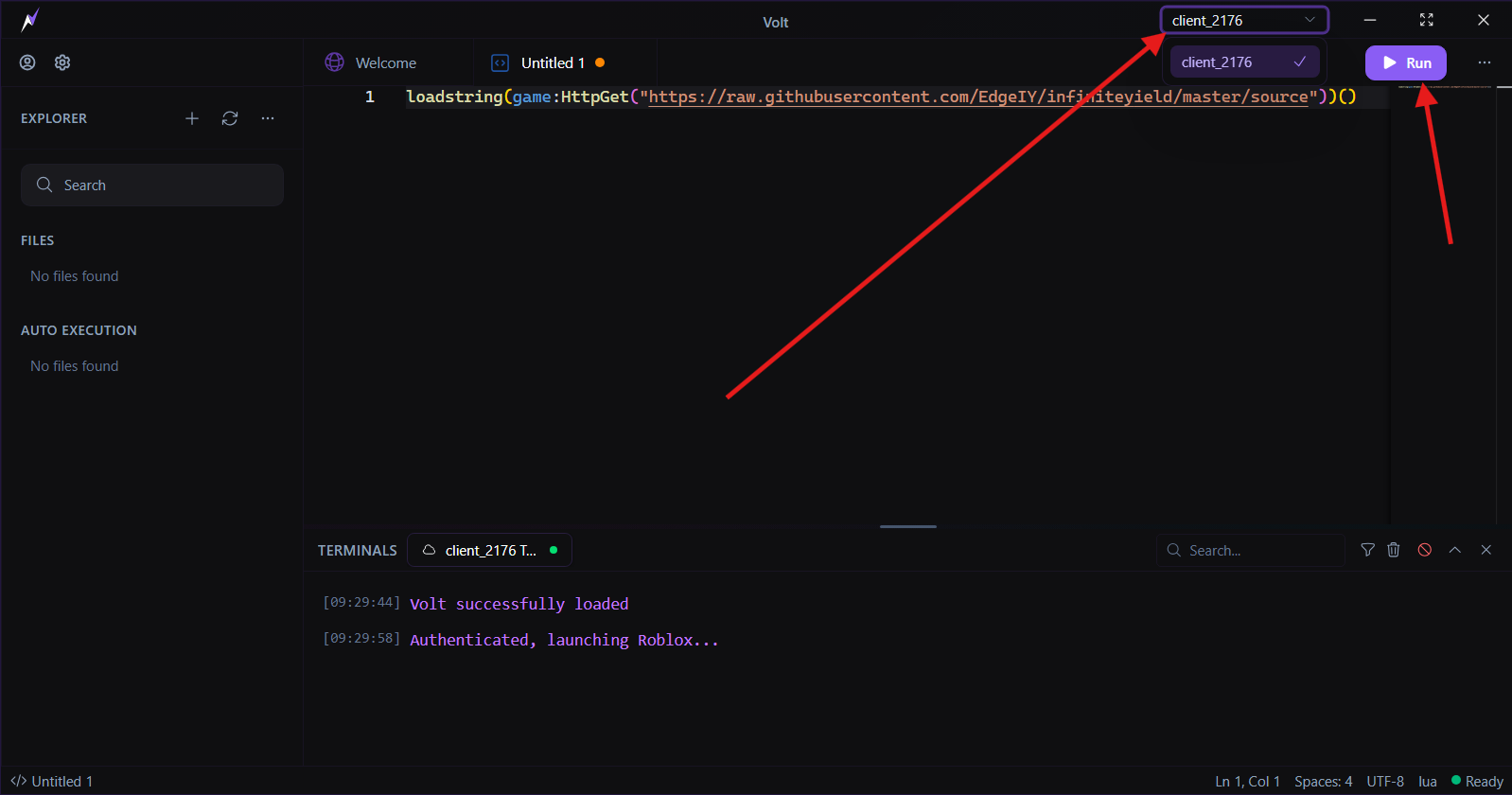
- Make sure a Client is selected by clicking the highlighted dropdown. Select a Client from there and it should appear selected in the Dropdown. After selecting a Client, press "Run".
Auto Execute
This explains how to Auto Execute.
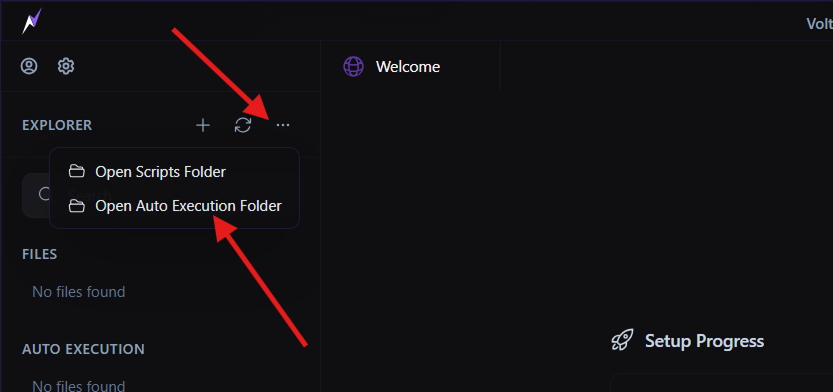
- Press the buttons in Volt to open the Scripts Folder or the Auto Execution Folder.
- Make a file in the folder that opens or edit the existing ones. File types can be
.txt,.luaor.luau. - Edit the file and put your script in it like this:
repeat task.wait() until game:IsLoaded() --Remove this line and put your Script in this space. - After putting in your script, save the file by pressing Ctrl + S and rejoin your game.
Welcome Page
This explains what the welcome page is.
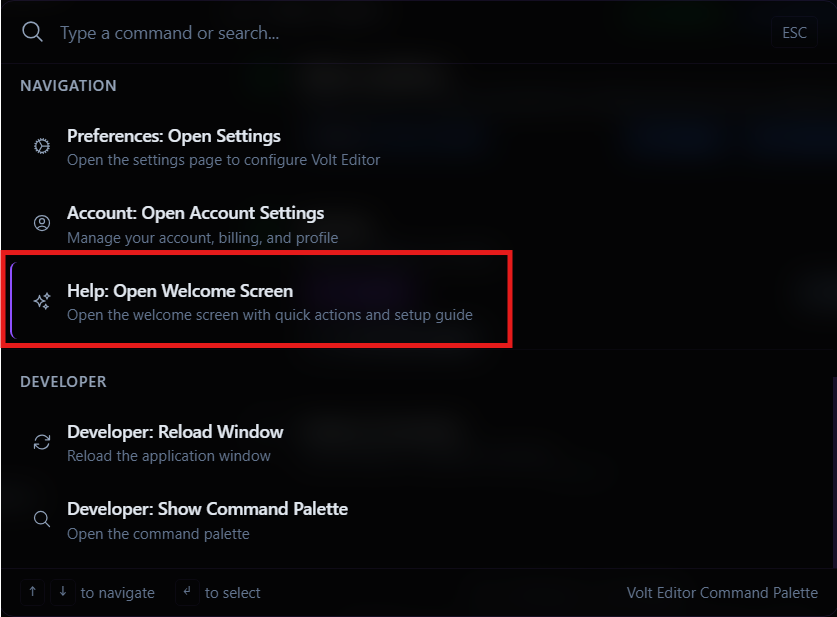
The welcome page is necessary for setting up Volt for the first time/updating it every time there is an update. If you accidentally closed it, it can be re-opened by pressing Ctrl + Shift + P and clicking "Help: Open Welcome Screen" at the bottom of the command palette.
Fixes
Solutions for common issues with Volt.
Security Context Failed Error

The fix is to use a VPN, some free recommended VPNs are Cloudflare WARP and Proton VPN. You can use any other VPN if you have one.
Solution: This is not Volt's fault. It simply means your Wi-Fi is blocking Volt's connection and a VPN is required.
Infinite Loading Game
If you are Auto Executing scripts there is a chance it is loading before the game has loaded properly.
How to fix scripts that cause infinite loading screens: edit your scripts in Auto Execute like it does in the Auto Execute section above.
Crashing
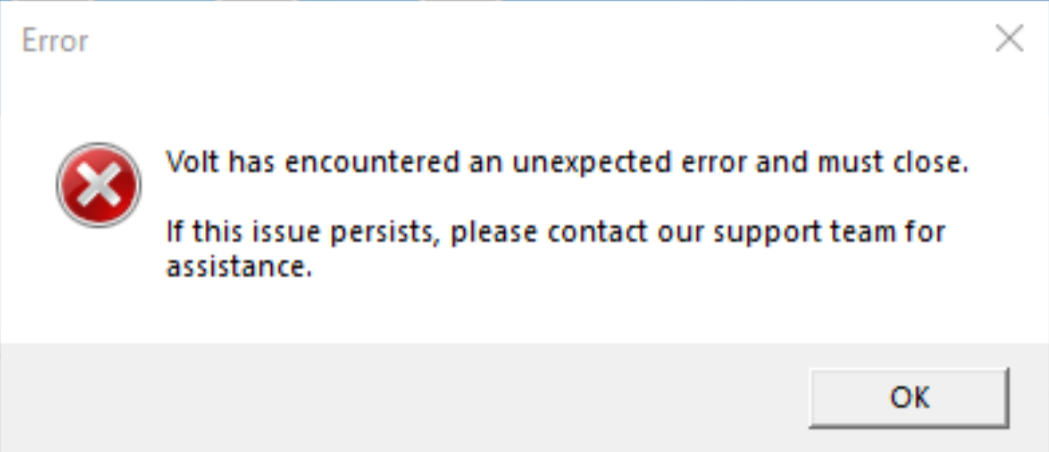
If you get this popup, or your game closes randomly when it shouldn't, that means you hit a crash.
You cannot fix this yourself. Make a support ticket in the Discord server. You can also try reinstalling your game client with a fresh install before opening a ticket.
Auth Error: Curl Error

[23:44:15] Authentication error: Lease acquisition failed: Recv failure: Connection was reset.For errors like these and similar, the fix is the same as in the Security Context Failed Error section — use a VPN.
Auth Error: Mismatch
[23:44:15] Authentication error: Hardware ID mismatch. Please reset your HWID or contact support.This error means your HWID is mismatched and Volt is not working because of that. To fix it:
- Go to Settings in Volt.
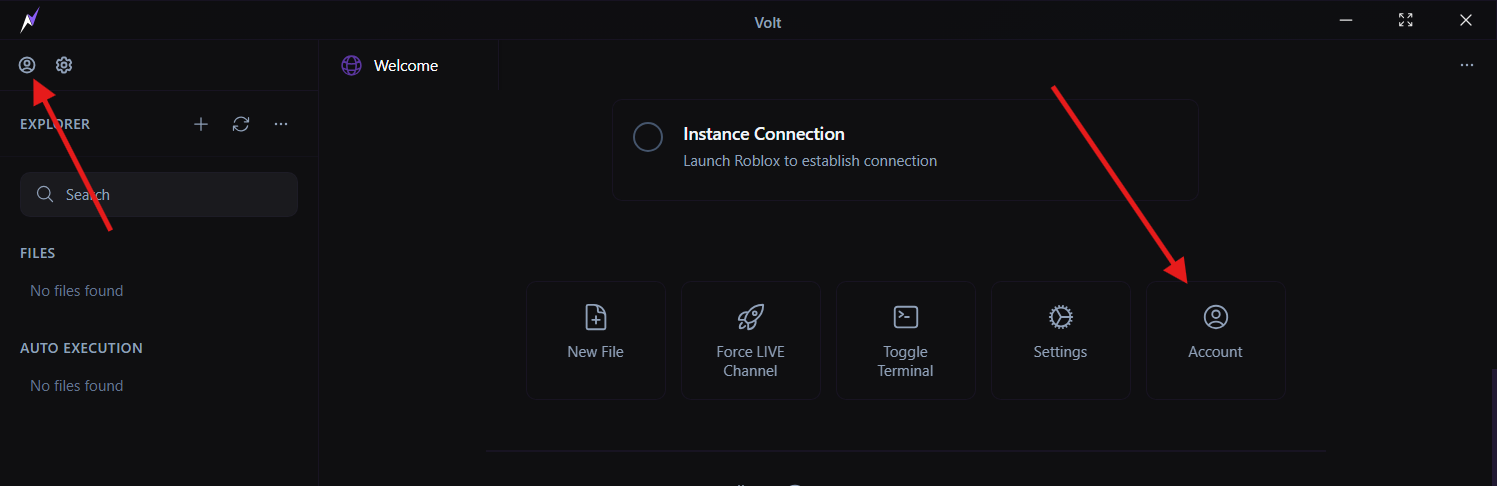
- Scroll down to Security & Privacy.
- Under Account Security, reset your HWID.
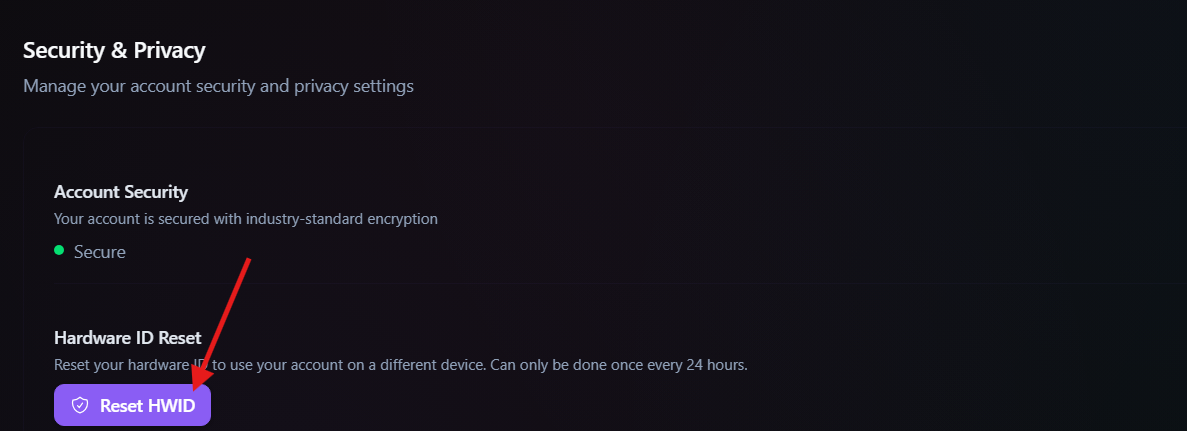
Warning: If you are getting kicked from the game (receiving a kicked message), that is not because of Volt. It means you need to reset your HWID for the script you are using.
Active Subscription Required
[05:00:00] Lease acquisition failed: Active subscription required to use VoltThis error means your subscription does not have a valid license, even though the UI might say otherwise. The key you purchased or redeemed could be blacklisted — this happens when you purchase a key from a non-official vendor, or chargebacked (tried to refund) the license.
In rare cases this also occurs when you have previously migrated your account (without claiming a new license).
Solution: Claiming a new license will fix this issue.
Auth Error: Malformed Response
HMAC auth test error: Auth failure 4: Malformed responseThis error means you are on an outdated version of Volt. To fix this:
- Navigate to the Welcome Page.
- Click the Uninstall button under Volt Files.
- Once the files have been uninstalled, install them again.
If that still does not work:
- Navigate to the Welcome Page and click Uninstall under Volt Files.
- Redownload the latest version of the UI from our website and install it. It will automatically remove the old version.
Seat Limit Reached
[11:17:37] Lease acquisition failed: Seat limit reachedThis error means you have reached the maximum number of concurrent instances allowed by your plan:
- Weekly — 10 instances
- Monthly — 25 instances
- Quarterly — 50 instances
- Farmer — Unlimited instances (tethered fair use)
To fix this:
- Close any extra instances you have running.
- If you just closed instances, wait up to 2 minutes for the sessions to expire. Crashed or force-closed instances do not release their seat immediately.
- You can view and kill active sessions from the Manage Connections panel on your dashboard.
Solution: If you believe your limit is incorrect (e.g., you have a monthly license but are capped at the weekly tier), try claiming a new license. Your instance cap is based on the highest-tier active license in your subscription.
Heartbeat Error: Expired Session
[16:08:25] Heartbeat error: Invalid or expired session tokenThis error means your session token has expired and the client was unable to automatically refresh it. This is usually a temporary issue. To fix this:
- Restart the instance — close the game and relaunch it from Volt. A new session token will be issued automatically.
- If it keeps happening, log out and log back in. This revokes the old session and creates a fresh one.
- If the issue persists across multiple restarts, make sure you are on the latest version of Volt. See the Malformed Response section for how to update.
- Check your internet connection. Session refresh requires a stable connection to the server. VPNs, unstable Wi-Fi, or restrictive firewalls can interfere. Along with random applications running in the background, close them all.
This error can also appear if you have been running an instance for a very long time and your network briefly dropped during the token refresh window. It does not mean your account or license is invalid. If nothing else works, try reinstalling your game client.
Authentication Error: Missing Session Token
Authentication error: Missing session token (use X-Session-Token or Authorization: Bearer)This error means Volt lost its authentication session entirely. This typically happens when the session expires and the automatic refresh fails repeatedly. To fix this:
- Log out and log back in. This will create a completely new session.
- If you were running many instances, close them all before logging back in.
- If the error keeps appearing after logging back in, make sure you are on the latest version of Volt. See the Malformed Response section for how to update.
If the issue persists after all of the above, try reinstalling your game client with a fresh install.
Warning: Do not keep launching instances while this error is showing. Log out and log back in, then use a VPN.
Reinstalling the Game Client
If you are experiencing persistent issues that other fixes have not resolved, a clean reinstall of the official game client often fixes them. This is a general-purpose fix that applies to many different errors.
- Uninstall the existing game client using your operating system settings.
- Download and reinstall the latest official game client from the vendor's official site.
- In Volt, set the Client Installation Path to your new clean install. Then click install Volt Files and launch the game.
This gives you a completely fresh client install with no leftover files or corrupted data from previous installations.